Super Admin: operations and support
Use these screens after the platform is live. They show evidence of what the server and subscribers actually did. A saved request is not the same as a completed host action.
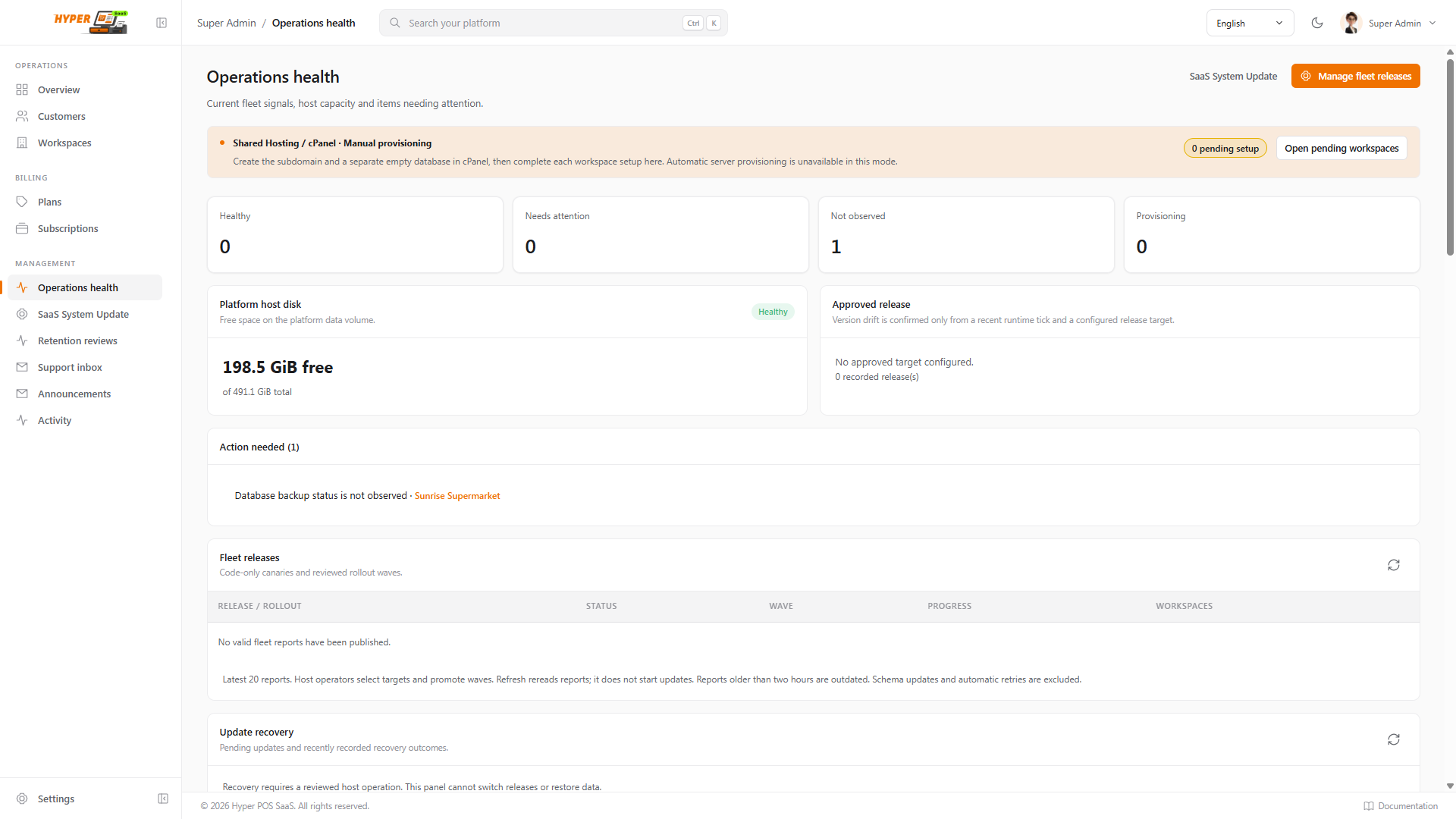
Operations health
Open Operations to review host capacity, approved release, workspace health, scheduler, queue backlog, current version and last observation. A stale or missing observation means the panel cannot confirm the runtime is healthy. Open the affected workspace and fix the named issue. The page also shows backup history and recovery readiness where signed evidence is available.
System Update
- Prepare the update
Read the publisher release notes. Confirm the package matches this Hyper-POS/SaaS installation and a current backup exists for the platform and each affected workspace.
- Publisher trust
The installation supplies its trusted publisher fingerprint automatically. If System Update says trust is unavailable, ask the host to check the installation plan and any conflicting server override. Do not take a fingerprint from the uploaded ZIP.
- Verify and queue
Open System Update and choose the signed production
customer-delivery.zipin the first drop zone. In the second drop zone, choose its matching Hyper-POS core ZIP (up to 128 MB). Offline deliveries include signed core verification details, so both uploaded files are verified without the update server. Older deliveries still require the configured feed and can download the core automatically when that feed is available. The core version, checksum and publisher signature are checked before rollout. Enter the current Super Admin password and select Upload & check. No authenticator code is needed for upload. - Check the queue
The row shows the release digest, time, workspace count and whether the host review is pending/prepared. Uploading does not replace live code.
- Complete the host handoff
A host operator reviews backups and the immutable plan, applies the central release, then handles subscriber rollout using the reviewed fleet handoff. Check Operations and System Update until each scope is verified.
The initial System Update screen queues a signed delivery; central execution is not yet automated. Do not promise a one-click update of all subscribers or install a normal core ZIP separately in each workspace.
Fleet Releases
From Operations → Manage fleet releases, select a release, choose target workspaces and optional canaries, then set wave size and concurrency. Review the request and reauthenticate. The panel records the host handoff and each result. When available, pause, promote, resume, cancel or archive only through the controls shown for that rollout status. A host operator applies approved requests; a browser request alone does not deploy code.
Backups and recovery
Review backup status and the backup catalogue for every workspace. A recent successful backup, protected offsite copy and tested restore are different checks. If a tenant update fails, preserve its receipt and use the exact recovery path. Code-only failure may use the previous signed release when rollback evidence is ready. A schema-changing failure stays in maintenance for reviewed journal recovery; do not improvise a reverse migration.
Support Requests and workspace history
- Open the inbox
Use Support Requests and filter by workspace or status. Subscribers can submit a request from their portal.
- Reply to the subscriber
Open the conversation, write a customer-visible reply and send it. Resolve the request when the issue is finished.
- Record internal context
Open the workspace’s Support history tab for handoff events and internal notes visible only to Platform Super Admin. Do not put passwords, codes or payment details there.
- Use temporary support access only when necessary
Enable the authenticator in Settings → Security. Issue a short, ticket-bound handoff from the workspace only when the runtime supports it. Revoke it immediately after the task.
Announcements
Open Announcements, create a draft, choose the intended audience and review the message before publication. Confirm that a test subscriber sees the notice. Use support tickets for private individual issues rather than public announcements.
Retention Reviews
Use this page when a workspace reaches its retention period. Filter by workspace and legal-hold state. The reviewed workflow requires notice, final export and exact inventory/backup evidence before a deletion plan can be approved. Never delete a subscriber database or uploads directly from cPanel to bypass this review.
Activity
Open Activity to audit platform changes and investigate who changed a customer, plan, subscription or workspace. Keep the relevant timestamps and sanitized IDs when requesting support. The Activity page does not replace database backups or host logs.
Screen example